
This guide walks through the complete process of configuring OPC UA server functionality in Kepware KEPServerEX. Once configured, OPC UA clients can securely connect to read and write process data from any device driver installed in KEPServerEX.
Prerequisites
- KEPServerEX v6.8 or later installed and running
- At least one channel and device already configured
- Administrative access to the KEPServerEX Administration tool
- OPC UA feature included in your license (or running in demo mode)
- Windows Firewall configured to allow the OPC UA port (default: 49320)
Step-by-Step Configuration
Step 1: Enable the OPC UA Server
- Open KEPServerEX Administration.
- Navigate to Settings then OPC UA in the project tree.
- Set "OPC UA Server Enabled" to
Yes. - Note the default endpoint URL:
opc.tcp://[hostname]:49320 - Click Apply to save the configuration.
Step 2: Configure Server Instance
- Set the Server URI — The unique identifier for your server instance. Format:
urn:[hostname]:Kepware:KEPServerEX - Configure the Server Name — A human-readable name for OPC UA client discovery (e.g.,
Plant01_KEPServer). - Set the Discovery Server URL if you have a Local Discovery Server (LDS):
opc.tcp://[LDS-host]:4840
Step 3: Configure Security Policies
- Navigate to OPC UA then Security Policies.
- Enable the desired policies. For production environments, recommended minimum:
- Basic256Sha256 — Sign and Encrypt (recommended minimum)
- Aes128-Sha256-RsaOaep — Modern AES encryption
- Aes256-Sha256-RsaPss — Highest security level
- Disable None security policy in production (use only for testing).
Step 4: Generate and Manage Certificates
- Navigate to OPC UA then Certificate Management.
- Click "Generate New Certificate" if no server certificate exists.
- Fill in the certificate fields:
- Common Name (CN):
KEPServerEX_Plant01 - Organization (O):
ASP OTOMASYON - Application URI:
urn:[hostname]:Kepware:KEPServerEX - Validity Period: 3650 days (10 years)
- Common Name (CN):
- Export the server certificate (.der file) to share with OPC UA clients for trust establishment.
- Import trusted client certificates into the Trusted certificate store.
Step 5: Configure User Authentication
- Navigate to OPC UA then User Authentication.
- Enable Anonymous access only for testing. For production, use:
- Certificate-based — Clients authenticate using X.509 certificates
- Username/Password — Clients provide credentials defined in User Manager
- Create specific user accounts with least-privilege access.
Step 6: Configure Namespace
- Navigate to OPC UA then Namespace.
- Choose namespace organization:
- Flat — All tags in a single folder (simple, small deployments)
- Hierarchical — Tags organized by channel and device (recommended)
- Enable Data Access, Alarms and Conditions, and Historical Access as needed.
Step 7: Apply and Restart
- Click Apply to save all OPC UA configuration changes.
- Restart the KEPServerEX runtime: right-click the system tray icon, select Restart Runtime.
- Verify in the Event Log that the OPC UA server started successfully.
Testing with an OPC UA Client
Use a generic OPC UA client to verify the server configuration:
- Install a Test Client — Options: UaExpert (free, by Unified Automation), Prosys OPC UA Browser, or the OPC Foundation .NET sample client.
- Create a Connection — Enter the server endpoint:
opc.tcp://[hostname]:49320 - Trust the Certificate — If using security, accept and save the server certificate when prompted.
- Authenticate — Provide the configured credentials or certificate.
- Browse the Namespace — Navigate the address space and verify that channels, devices, and tags are visible.
- Read/Write Values — Subscribe to a few tags and verify that values update in real time.
Common Issues and Solutions
| Issue | Symptom | Solution |
|---|---|---|
| Connection Refused | Client cannot connect to endpoint | Check Windows Firewall rules for port 49320. Verify OPC UA is enabled. |
| Certificate Rejected | Client certificate in Rejected store | Move client certificate from Rejected to Trusted store. Restart runtime. |
| Security Policy Mismatch | Handshake failure during connection | Ensure client and server share at least one common security policy. |
| No Data / Bad Quality | Tags visible but values show Bad | Verify the underlying device channel is connected (green status). |
| Slow Response | Long delays when browsing or reading | Reduce monitored items per subscription. Increase publishing interval. |
| License Error | OPC UA features disabled | Verify your license includes OPC UA server option. Contact PTC/Kepware. |
| Discovery Failures | Server not found in client discovery | Ensure LDS is configured and running. Alternatively, connect directly to endpoint URL. |
Configuration Summary
OPC UA Server Configuration Summary
====================================
Endpoint URL    : opc.tcp://plant01-server:49320
Server URI      : urn:plant01-server:Kepware:KEPServerEX
Server Name     : Plant01_KEPServer
Security Policy : Basic256Sha256 (Sign and Encrypt)
Auth Mode       : Certificate + Username/Password
Namespace       : Hierarchical (Channel - Device - Tag)
Discovery       : LDS at opc.tcp://discovery-server:4840
Firewall Port   : 49320/TCP (inbound)
ASP OTOMASYON A.Ş. and its subsidiaries OPCTurkey and ASP Dijital provide end-to-end industrial engineering solutions for process automation, data operations and AI.
References & Further Reading
- PTC Kepware KEPServerEX — Official Documentation — Official product documentation covering installation, channel/device configuration, and OPC UA server setup in KEPServerEX.
- OPC Foundation — OPC UA Security and Certificate Management — Official guidance on OPC UA X.509 certificate generation, trust establishment, and security policy configuration.
- Unified Automation UaExpert — OPC UA Client Tool — Official page for the UaExpert OPC UA test client, widely used for testing OPC UA server connections and browsing address spaces.
- Prosys OPC UA Browser — Official Prosys OPC UA client tool for server discovery, certificate management, and address space browsing.
- PTC Kepware Support — OPC UA Configuration Knowledge Base — Official Kepware knowledge base articles covering OPC UA troubleshooting, certificate issues, and security policy configuration.
Apply this to your project
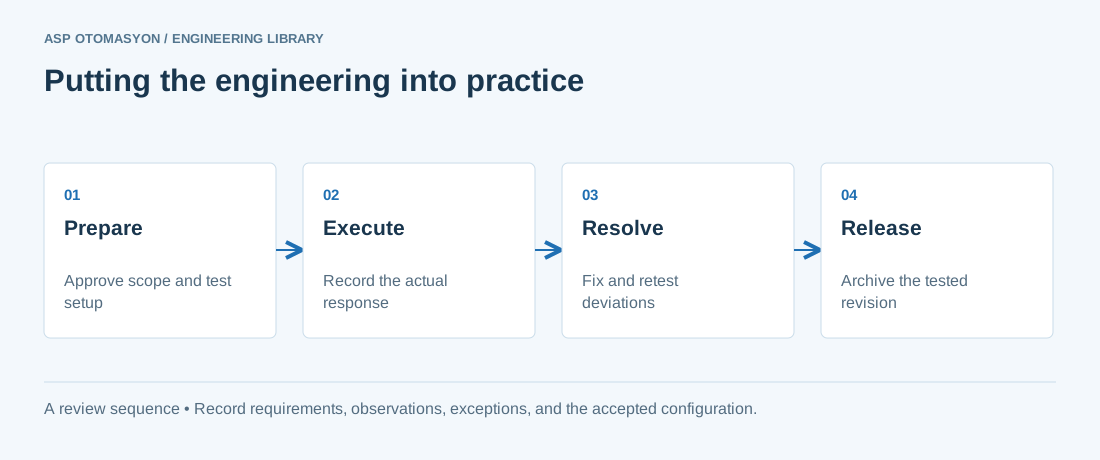
- Agree the test boundary and site authorization, especially where outputs or communications can affect operating equipment.
- Record expected and actual values, equipment identifiers, software revision, test conditions, and exceptions.
- Retest changed behavior and archive the final configuration with the test record and recovery instructions.
Follow an ASP project guide to connect the fundamentals with implementation and acceptance.
Primary references and further reading
Use the original specifications and product documentation for implementation details. The examples in this guide are illustrative engineering scenarios, not published project results.