
Industrial networks are the nervous system of any automated facility. When they fail, production stops. Unlike enterprise IT networks, industrial networks carry real-time control traffic where a 50-millisecond delay can mean a rejected part, a quality deviation, or a safety incident. This article presents a systematic, repeatable methodology for troubleshooting industrial network issues — from physical layer faults to application layer misconfigurations — tailored for OT engineers working with PROFINET, EtherNet/IP, Modbus TCP, and related protocols.
The Systematic Diagnostic Approach
Before touching a cable or opening Wireshark, adopt a structured methodology. The OSI model is your diagnostic framework:
- Define the problem — What exactly is failing? "The PLC cannot reach the remote rack" is vague. "Ping from PLC 192.168.1.10 to remote rack 192.168.2.20 fails with 100% loss while other devices on the same switch reach it fine" is specific.
- Gather data — LED states, error counters, switch logs, device diagnostic pages, cable tester results.
- Form a hypothesis — "The fibre link between switches has high attenuation" or "The device has a duplicate IP address."
- Test the hypothesis — One test at a time. Change one thing, measure the result, document it.
- Escalate up the OSI model — Start at Layer 1 (physical), confirm it is sound, then move to Layer 2, Layer 3, and so on. Do not skip layers.
Troubleshooting Flowchart
                     ┌──────────────────────┐
                     │ Network problem       │
                     │ reported              │
                     └──────────┬───────────┘
                                │
                     ┌──────────v───────────┐
                     │ Can you reproduce    │
             ┌──────│ the problem?          │──────┐
             │ YES   └──────────────────────┘      │ NO
             │                                      │
    ┌────────v────────┐                    ┌───────v────────┐
    │ Check LEDs on   │                    │ Check event    │
    │ devices &       │                    │ logs & error   │
    │ switches        │                    │ counters       │
    └────────┬────────┘                    └───────┬────────┘
             │                                     │
    ┌────────v────────┐                    ┌───────v────────┐
    │ All LEDs normal?│                    │ Any errors     │
    ├───YES───┬───NO──┤                    │ logged?        │
    │         │       │                    ├───YES───┬───NO──┤
    │  ┌──────v──┐    │                    │         │       │
    │  │ Go to   │    │              ┌─────v──┐   ┌─v──────┐│
    │  │ Layer 2 │    │              │ Analyse │   │ Monitor││
    │  │ check   │    │              │ error   │   │ & wait ││
    │  └─────────┘    │              │ pattern │   │ for    ││
    │                 │              └────┬────┘   │ repeat ││
    │           ┌─────v─────┐             │        └────────┘│
    │           │ Replace   │      ┌──────v──────┐           │
    │           │ cable /   │      │ Fix root    │           │
    │           │ repair    │      │ cause       │           │
    │           │ physical  │      └──────┬──────┘           │
    │           │ layer     │             │                  │
    │           └─────┬─────┘             │                  │
    │                 │                   │                  │
    └─────────────────┴───────────────────┴──────────────────┘
                                │
                     ┌──────────v───────────┐
                     │ Verify fix: problem  │
                     │ resolved?            │
                     ├─────YES──────┬───NO──┤
                     │             │       │
                  ┌──v──┐    ┌─────v──────┐
                  │Done │    │ Escalate:  │
                  │     │    │ higher OSI │
                  └─────┘    │ layer      │
                             └────────────┘
Layer 1: Physical Layer Diagnostics
The physical layer is the most common source of industrial network problems, yet it is routinely skipped by engineers who jump straight to IP configuration checks.
Cable and Connector Checks
- Visual inspection — Look for bent pins in RJ45/M12 connectors, damaged cable jackets, loose connectors, and debris in fibre optic end-faces.
- Continuity testing — Use a simple cable tester for copper; use an optical power meter and visual fault locator for fibre.
- Cable qualification — A continuity test only checks pin-to-pin wiring. Use a cable certifier (e.g., Fluke DSX-8000) to verify attenuation, NEXT, return loss, and impedance against Category 5e/6/6A standards.
- Distance limits — Copper Ethernet: 100 metres per segment. Fibre multimode: 550 m (1000BASE-SX). Fibre single-mode: 10 km+ (1000BASE-LX). Beyond these, use a media converter or fibre switch.
Switch LED Interpretation
| LED State | Meaning | Action |
|---|---|---|
| Link/Act solid green | Link established, no traffic | Normal (idle link) |
| Link/Act flashing green | Traffic passing | Normal |
| Link/Act amber | Link at lower speed (10/100 instead of 1000) | Check cable quality, replace if needed |
| Link/Act off | No link | Bad cable, wrong cable type (crossover vs. straight), powered-off device |
| Flashing amber all ports | Switch booting or fault | Check switch power, try power cycle |
| Port status amber + solid | Port disabled (STP, security, error-disable) | Check switch logs for the disable reason |
Duplex Mismatch — The Silent Killer
Duplex mismatch occurs when one end of a link is set to full-duplex and the other end is set to half-duplex (or one end is set to auto-negotiate and the other is manually set). Symptoms:
- High CRC error count on the full-duplex end.
- High collision count on the half-duplex end.
- Intermittent connectivity — works at low traffic, fails under load.
- PROFINET and EtherNet/IP devices show "Connection Timeout" or "IOPS Failure."
Fix: Set both ends to auto-negotiate. If auto-negotiation is not supported (legacy equipment), set both ends to the same speed and duplex manually. Never leave one hard-set and the other on auto.
Layer 2: Data Link Layer Diagnostics
ARP Issues
The Address Resolution Protocol (ARP) maps IP addresses to MAC addresses. Common ARP problems:
- Duplicate IP address — Two devices claim the same IP. ARP cache shows alternating MAC addresses for the same IP. Check switch logs for "Duplicate IP" entries. Fix by re-addressing one device.
- ARP spoofing — A rogue device replies to ARP requests with its own MAC. Use static ARP entries for critical devices (PLCs, safety controllers) on managed switches.
- Missing ARP entry — A device cannot reach another because ARP resolution fails. This often means the target is on a different VLAN or subnet without a properly configured gateway.
Broadcast Storms
A broadcast storm occurs when switches loop broadcast frames endlessly. Symptoms:
- Switch CPU utilisation spikes to 100%.
- All devices on the VLAN experience intermittent connectivity.
- PROFINET devices report "sync failures" or "communication interruptions."
Prevention and fix:
- Enable Spanning Tree Protocol (STP) — Rapid STP (RSTP, IEEE 802.1w) on all managed switches.
- Enable Broadcast Storm Control — Set a threshold (e.g., 500 packets/second) on each switch port. Ports exceeding this are error-disabled.
- Enable Loop Protection — Many industrial switches (Moxa, Hirschmann, Siemens) offer loop guard features that shut down a port when a loop is detected.
VLAN Configuration Errors
A device connected to a switch port in the wrong VLAN will be invisible to devices in other VLANs. The device may have a valid IP address, but it belongs to a different broadcast domain.
- Verify the switch port VLAN assignment matches the device's IP subnet.
- For trunk ports, verify the allowed VLAN list includes the required VLAN.
- Use a VLAN scanner or
cdp/lldpneighbour discovery to map devices to VLANs.
Layer 3: Network Layer Diagnostics
Ping and Traceroute for Industrial Networks
Ping and traceroute are the first tools to use at Layer 3, but they must be interpreted carefully in industrial contexts:
- Ping test structure — Use extended pings with 100–1000 packets to capture intermittent loss:
ping 192.168.1.100 -n 1000 -l 64 -w 1000- 0% loss → Layer 3 is functional.
- <1% loss → Likely a physical or duplex issue under load.
- >1% loss → Investigate further; unacceptable for real-time traffic.
- 100% loss → Either Layer 3 failure or the target is firewalled.
- Traceroute — Maps the path between source and destination:
tracert -d 192.168.1.100   # Windows
traceroute -n 192.168.1.100 # Linux
Look for hops that introduce latency spikes (>10 ms increase) or where the path takes an unexpected route (asymmetric routing).
- Industrial caution — Some PLCs and remote IO devices do not respond to ICMP (ping) even when they are fully functional. A failed ping does not always mean a failed device. Check the device manual for ICMP support.
IP Address Conflicts
Duplicate IP addresses are the most common Layer 3 problem in industrial networks, especially those using static IP addressing (which is the norm for PROFINET and EtherNet/IP).
- Symptoms: Intermittent connections, devices randomly disconnecting, switch logs showing MAC flapping between ports.
- Detection: Use
arp -ato check if one IP has multiple MAC entries. Use a dedicated IP conflict detector (e.g., SolarWinds IPAM, or an open-source tool like Angry IP Scanner). - Prevention: Maintain an IP address register (spreadsheet or database). Use DHCP reservations for devices that support DHCP (modern PLCs and HMIs increasingly do).
Wireshark for Protocol Analysis
Wireshark is the definitive tool for industrial network troubleshooting. Here is how to use it effectively in an OT context:
Capture Setup
- Use a managed switch with a mirror/SPAN port. Configure the switch to copy all traffic from the problematic port to the port where your laptop is connected. This is non-intrusive — the production traffic is never interrupted.
- If a mirror port is not available, use a network TAP (passive tap) inline between the device and the switch.
- Set a capture filter to reduce file size:
host 192.168.1.100   # Capture only traffic to/from the problematic device
ether host AA:BB:CC:DD:EE:FF  # Capture only traffic for a specific MAC
Key Filters for Industrial Protocols
| Protocol | Wireshark Filter | What to Look For |
|---|---|---|
| EtherNet/IP | (ethype == 0x0800) and (ip.proto == 0x11) and (udp.port == 44818 or udp.port == 2222) | TCP connections timing out, CIP connection failures |
| PROFINET IO | eth.proto == 0x8892 | IOPS (IO Provider Status) showing "bad", sync frame jitter >1 µs |
| Modbus TCP | tcp.port == 502 | Exception codes (01=illegal function, 02=illegal address, 03=illegal value) |
| OPC UA | tcp.port == 4840 or tcp.port == 49320 | Connection timeout, Hello/Acknowledge negotiation failure |
| ARP | arp | Duplicate IPs (look for multiple ARP replies for the same IP) |
| STP/RSTP | stp | Topology changes, TCN propagation delays, root bridge changes
PROFINET-Specific Diagnostics
PROFINET has unique diagnostic features built into the protocol:
- Time synchronisation jitter — PROFINET IRT requires sync jitter below 1 µs. Use the
PROFINET IO→Syncstatistics in Wireshark to measure jitter. Values above 1 µs indicate network congestion or switch buffer delays. - IOPS quality — The IOPS (I/O Provider Status) field in every PROFINET frame indicates data quality. A value of "bad (0)" means the IO device cannot provide valid data. This is often caused by communication errors at lower layers.
- Station violation — When a PROFINET device misses its scheduled transmission slot. Common causes: excessive network load, switch fabric congestion, or a device running out of CPU time.
EtherNet/IP-Specific Diagnostics
- Forward Open failure — When an EtherNet/IP scanner tries to open a connection to an adapter and fails. The failure response includes a General Status Code and Extended Status Code. Wireshark decodes these into human-readable errors.
- RPI (Requested Packet Interval) mismatch — The scanner requests 50 ms, but the adapter only supports 100 ms. Connection fails. This is one of the most common configuration errors in EtherNet/IP deployments.
- Explicit vs. Implicit messaging — Excessive explicit messaging (configuration reads/writes) can starve implicit (real-time I/O) connections. Look for CIP generic commands (0x4C) mixed with I/O data on the same connection.
Common Issues and Quick Fixes Reference
| Issue | Symptoms | Most Likely Cause | Quick Fix |
|---|---|---|---|
| Intermittent drops | Connection works for minutes, drops for seconds | Duplex mismatch, bad cable, switch buffer overflow | Check duplex setting, replace patch cable, check switch logs |
| No communication at all | Ping fails, no link LED | Bad cable, powered-off device, wrong VLAN | Test cable, power cycle device, verify VLAN |
| Slow response times | SCADA updates take 5+ seconds | Network congestion, switch overload, duplex mismatch | Check port statistics, reduce broadcast traffic, verify duplex |
| PROFINET device faults | "IOPS bad" in diagnostics | Cable length >100 m, shield not grounded, industrial noise | Check cable length, verify shield grounding, use industrial-grade cable |
| EtherNet/IP connection fails | Scanner cannot open connection | RPI mismatch, TCP port blocked, CIP version mismatch | Verify RPI values, check firewall, match CIP versions |
| ARP storm | Switch CPU 100%, intermittent connectivity | Duplicate IP, misconfigured VLAN, rogue DHCP server | Find duplicate IP, fix VLAN, disable rogue DHCP |
| STP reconvergence | All devices lose connection for 30–50 seconds | Network loop, STP topology change, redundant link failure | Find loop, verify RSTP, check redundant link |
Documentation Practices
A network is only as reliable as its documentation. After every troubleshooting session:
- Update the network diagram — Did you find an undocumented device? Add it. Did the IP addressing change? Update it. Use a tool like draw.io, Visio, or yEd.
- Log the incident — Date, time, symptoms, diagnostics performed, root cause, fix applied, verification result, and the name of the engineer who resolved it.
- Track recurring issues — If a specific switch port fails every three months, you have an underlying problem (bad connector, environmental stress, excessive vibration). Do not keep fixing symptoms.
- Create a "golden" configuration file — For every managed switch, save a known-good configuration. Use this as a baseline when troubleshooting configuration drift.
Key takeaway: Industrial network troubleshooting is not magic — it is a systematic, layer-by-layer process. Start at Layer 1, verify it before moving up. Use the right tools (cable tester, Wireshark, switch logs) for each layer. Document everything. And remember: in OT networks, the most common root cause of "mysterious" problems is a damaged cable or a duplex mismatch. Check those first.
References & Further Reading
- PROFIBUS & PROFINET International (PI) — Network Diagnostics Guide — Official PI organisation technical documentation for PROFINET diagnostics, including IOPS evaluation, sync jitter measurement, and station violation analysis.
- ODVA — EtherNet/IP Network Troubleshooting Guide — Official ODVA technical documentation for EtherNet/IP diagnostics, covering Forward Open errors, RPI mismatch detection, and CIP connection troubleshooting.
- Modbus Organization — Modbus TCP Troubleshooting and Best Practices — Official Modbus organization guide for troubleshooting Modbus TCP/IP communication issues, exception codes, and performance diagnostics.
- Wireshark — Network Protocol Analyzer Documentation — Official Wireshark documentation with industrial protocol dissector guides for PROFINET (EtherType 0x8892), EtherNet/IP (CIP), and Modbus TCP (port 502) analysis.
- IEEE 802.1D / 802.1w — Spanning Tree Protocol and Rapid STP Standards — IEEE standards for network loop prevention and redundancy, essential for understanding STP-related issues in industrial Ethernet networks.
Apply this to your project
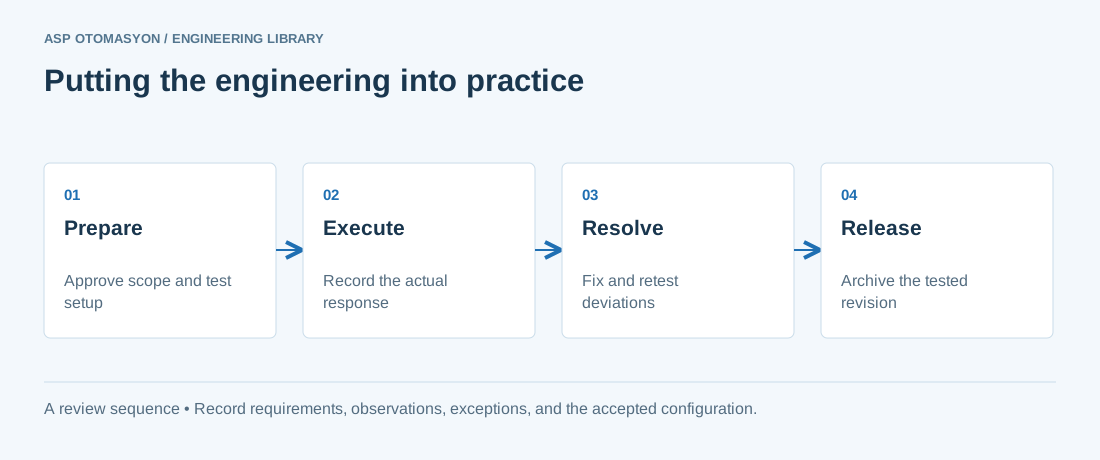
- Agree the test boundary and site authorization, especially where outputs or communications can affect operating equipment.
- Record expected and actual values, equipment identifiers, software revision, test conditions, and exceptions.
- Retest changed behavior and archive the final configuration with the test record and recovery instructions.
Follow an ASP project guide to connect the fundamentals with implementation and acceptance.
Primary references and further reading
Use the original specifications and product documentation for implementation details. The examples in this guide are illustrative engineering scenarios, not published project results.