
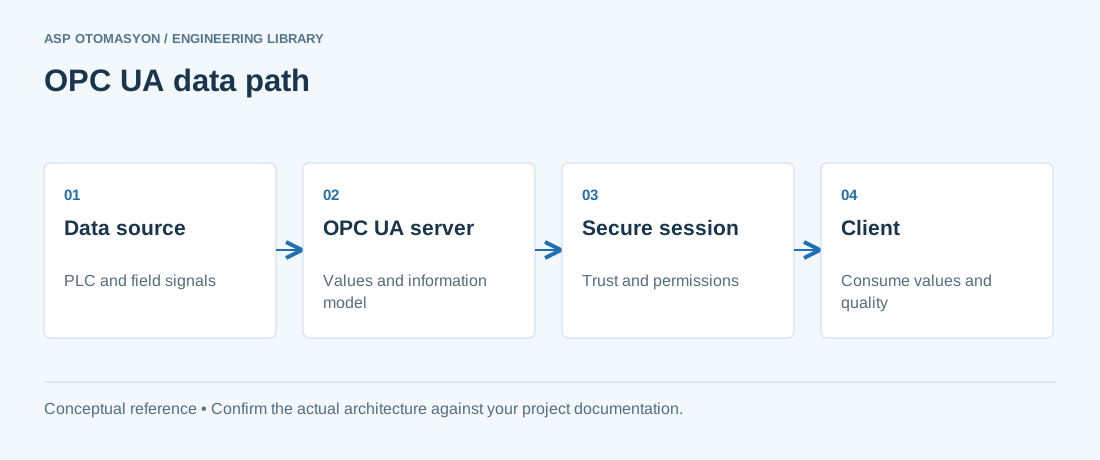
Kepware Server (formerly KEPServerEX) is one of the most widely deployed OPC servers, providing connectivity to over 150 industrial protocols and device drivers. It serves as the communication bridge between PLCs, DCS controllers, sensors, and higher-level systems such as SCADA, MES, historians, and cloud platforms.
Prerequisites
Before installing KEPServerEX, verify the following requirements:
- Windows Server 2016/2019/2022 or Windows 10/11 (64-bit)
- .NET Framework 4.8 or later
- Minimum 4 GB RAM, 2 GHz dual-core processor
- Administrative privileges for installation
- Network access to target devices (PLCs, instruments)
- Valid Kepware license (demo mode allows 2-hour sessions with up to 100 tags)
Installation Steps
- Download the Installer — Obtain the latest KEPServerEX installer from the PTC/Kepware support portal. Verify the SHA-256 checksum before execution.
- Run as Administrator — Right-click the installer and select "Run as administrator." Accept the UAC prompt.
- Accept License Agreement — Review and accept the end-user license agreement (EULA).
- Choose Installation Directory — The default path is
C:\Program Files\Kepware\KEPServerEX 6. Change only if required by your organization standards. - Select Drivers — Choose the device drivers you need. Common selections: Allen-Bradley ControlLogix, Siemens S7 Ethernet, Modbus TCP/IP Ethernet, Mitsubishi Ethernet.
- Complete Installation — Click Install and wait. The KEPServerEX service starts automatically.
- Apply License — Launch KEPServerEX Administration, navigate to Help then License, and activate your product key.
Creating Channels and Devices
KEPServerEX organizes communication in a hierarchy of Channels (protocol-level connections) and Devices (individual controllers on a channel):
Step 1: Create a Channel
- Right-click "Connectivity" in the project tree and select New Channel.
- Enter a descriptive channel name (e.g.,
Plant01_ModbusTCP). - Select the device driver (e.g., Modbus TCP/IP Ethernet).
- Configure network adapter and communication parameters.
- Click Finish to create the channel.
Step 2: Add Devices
- Right-click the new channel and select New Device.
- Enter the device name (e.g.,
PLC_MixingTank01). - Enter the IP address or hostname of the target PLC.
- Configure device-specific parameters.
- Click Finish to add the device.
Configuration Parameters
| Parameter | Modbus TCP | Allen-Bradley EtherNet/IP | Siemens S7 Ethernet |
|---|---|---|---|
| Default Port | 502 | 44818 | 102 |
| Timeout (ms) | 3000 | 3000 | 3000 |
| Retry Count | 3 | 3 | 3 |
| Scan Rate (ms) | 1000 | 500 | 1000 |
| Max Tags per Request | 125 (read), 123 (write) | Varies by processor | Varies by PDU size |
| Communication Mode | Master/Slave | Class 1 Messaging | S7 Basic Communication |
| Auto-Demotion | Recommended: ON | Recommended: ON | Recommended: ON |
Tag Configuration
Tags represent individual data points. Configure tags carefully to ensure accurate data mapping:
- Right-click the device and select New Tag.
- Enter the tag name using a consistent naming convention (e.g.,
Tank01_Level_PV). - Set the Address — the register location in the PLC (e.g.,
40001for Modbus Holding Register 1). - Select the Data Type (Boolean, INT16, INT32, FLOAT, STRING, etc.).
- Configure Scaling if raw values need engineering unit conversion (e.g., raw 0–27648 to 0.0–100.0%).
- Set the Scan Rate — override the device default for tags requiring faster or slower polling.
Security Settings
KEPServerEX supports multiple layers of security:
- User Manager — Create local user accounts with specific permissions (read-only, read-write, admin).
- OPC UA Security — Configure X.509 certificates for OPC UA connections with Sign or SignAndEncrypt mode.
- Application Authentication — Restrict which OPC client applications are allowed to connect by whitelisting trusted application URIs.
- Encryption — Enable TLS for HTTPS-based connections.
- Audit Logging — Enable audit trails to record all configuration changes and user login events.
Diagnostics and Troubleshooting
KEPServerEX includes built-in diagnostic tools:
- OPC Diagnostics — View real-time statistics per channel: message count, error count, throughput, and last error code.
- Event Log — Access via View then Event Log. Filter by severity (Info, Warning, Error).
- Device Status — Green icon means connected, Yellow means warnings, Red means communication failure.
- Packet Trace — Capture raw protocol packets for detailed communication analysis.
ASP OTOMASYON A.Ş. and its subsidiaries OPCTurkey and ASP Dijital provide end-to-end industrial engineering solutions for process automation, data operations and AI.
References & Further Reading
- PTC Kepware KEPServerEX Connectivity Platform — Official product page with documentation, driver list, and system requirements for the KEPServerEX industrial connectivity platform.
- PTC Kepware Technical Support and Knowledge Base — Official support portal with configuration guides, troubleshooting articles, and best practices for KEPServerEX deployments.
- Modbus Organization — Modbus TCP/IP and RTU Specifications — Official Modbus protocol specifications maintained by the Modbus Organization, covering function codes, addressing, and data encoding.
- ODVA — EtherNet/IP and CIP Protocol Specifications — Official specifications for EtherNet/IP and the Common Industrial Protocol used by Allen-Bradley/Rockwell Automation devices.
- PTC Kepware Advanced Features — Alarms, Logging, Redundancy — Official documentation for KEPServerEX advanced capabilities including alarm configuration and ODBC data logging.
Commission the actual driver and device combination
Record the installed Kepware version, driver, device model, firmware, addressing convention, and requested update behavior. Product labels, licensing, and configuration screens vary by version; use the installed product help for exact options. Begin with a small read-only tag set and validate raw values, scaling, quality, and timestamps. Add load gradually and measure device response before applying one fast scan rate across the project.
Continue with the related practical guide.
Apply this to your project
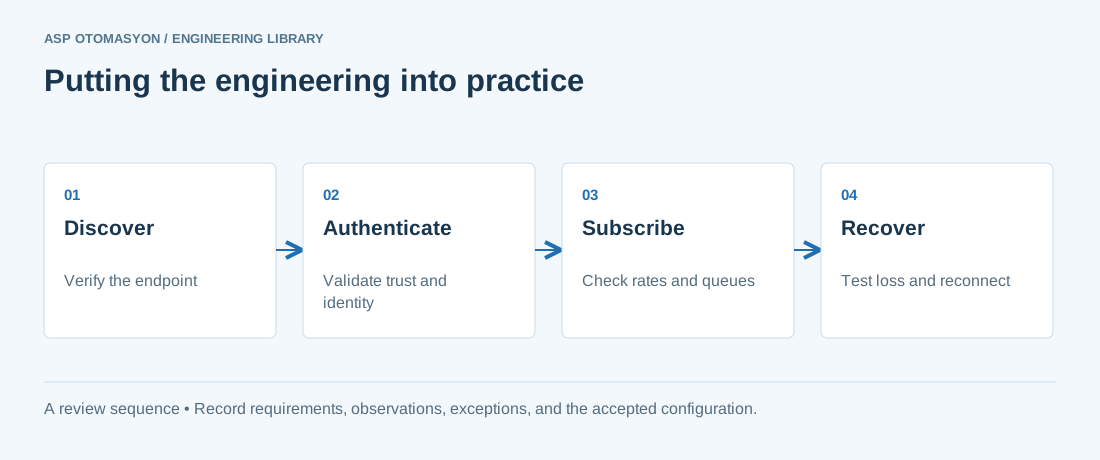
- Record the endpoint, supported security policies, application identity, certificate expiry, and user permissions.
- Verify the value, engineering unit, StatusCode, and source timestamp together at the receiving application.
- Test disconnection and recovery with representative subscriptions; preserve evidence of any data gaps or repeated values.
Follow an ASP project guide to connect the fundamentals with implementation and acceptance.
Primary references and further reading
Use the original specifications and product documentation for implementation details. The examples in this guide are illustrative engineering scenarios, not published project results.